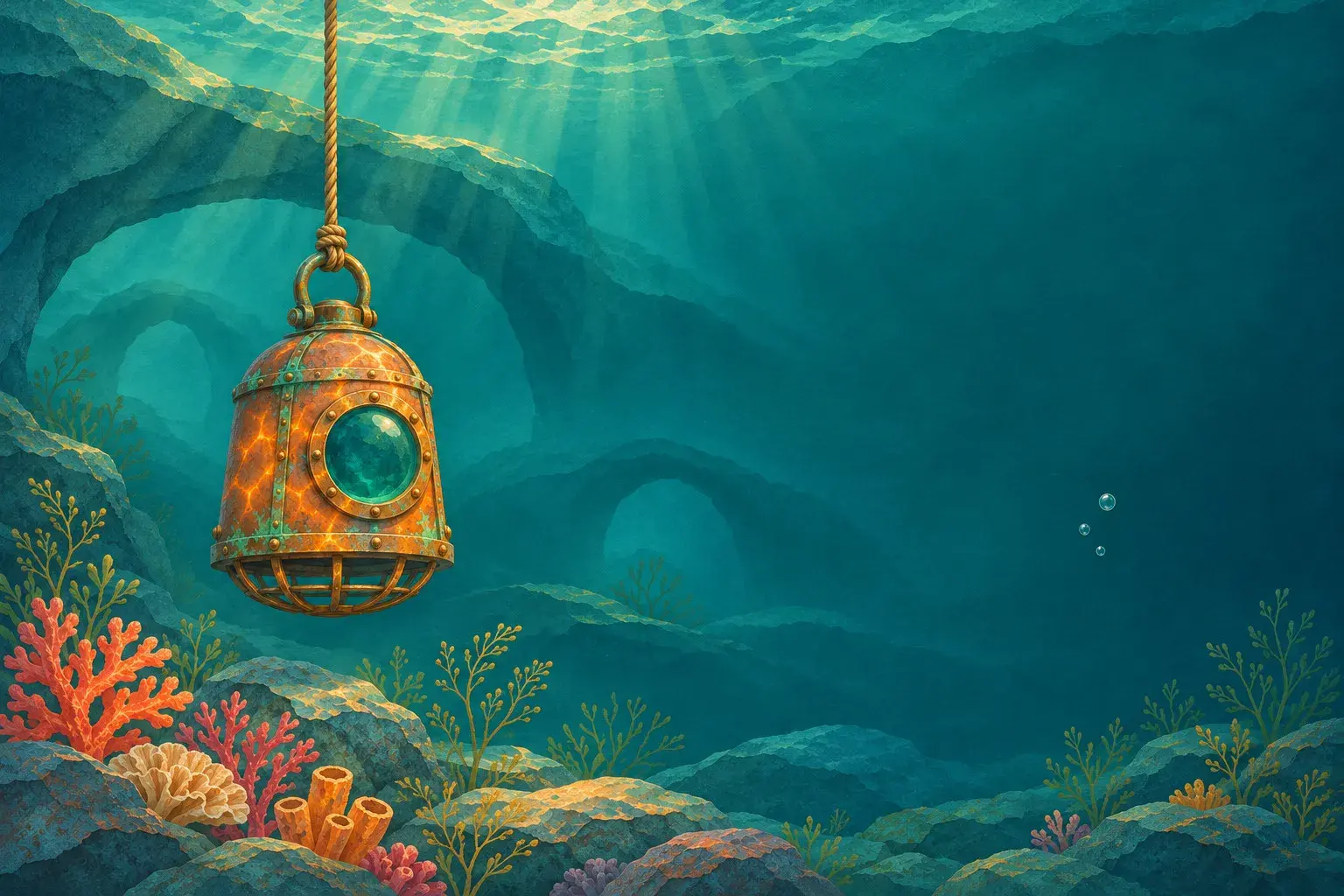
Start with a finished illustration and give one small detail somewhere to go. You can then try a short moving preview for a portfolio post while keeping the original artwork beside it. You do not need to film yourself drawing, and the preview should not imply that you did.
This example uses an imagined copper diving bell in a teal underwater scene. The bell stays in place; three decorative bubbles rise through the empty water on its right. Below are two clean reference images, a complete prompt you can copy, and the browser steps for trying the idea.
This is an AI-assisted guide with original AI-generated illustrations. The references and prompts are prepared teaching materials; no example video has been generated or tested here.
Prepare the artwork and its ending frame
Choose artwork you own or have permission to animate and share. Save the untouched original before making a video copy. If it contains someone else's character, client material or a restricted commission, check the actual permission rather than assuming an animation is covered.
For this exercise, use a square composition and select 1:1 in the video tool. The two clean underwater references here are both 1254 × 1254 pixels. Save the images themselves; do not take screenshots that include the article's captions, browser controls or page margins.

Start Frame: the three bubbles sit lower in the open water. This original AI-generated teaching artwork is a clean square reference, not a frame extracted from a generated video.
The first image is the Start Frame. Its three bubbles are lower in the open water. The second is the End Frame, where the cluster sits higher. The copper bell, coral, rope and overall framing remain visually aligned. These AI-prepared references have small texture differences; they are close visual guides, not pixel-identical artwork.

End Frame: the same small bubble cluster is higher at right. The references share their dimensions and crop and closely match visually; the AI-edited artwork is not pixel-identical or proof of a successful video transition.
When adapting your own illustration, make the ending frame from a duplicate of the same source document. Reposition the chosen detail on its layer, restore the background beneath its old position, and export the complete picture again at the same dimensions. Keep the crop and colour treatment unchanged. Do this preparation in your image editor; the video form is not an ending-frame editor.
Give the movement a clear patch of space. A bubble passing behind a busy coral branch is harder to specify than a bubble rising through open water. Keep the change small enough that the composition still looks like the artwork you want to present.
Copy this image-to-video prompt
Use the two clean underwater images in their stated order with this complete prompt:
Animate the supplied square underwater illustration from the Start Frame to the End Frame. Move only the existing cluster of three small bubbles in the open water on the right, gently upward toward their positions in the End Frame. Keep their relative arrangement and small sizes consistent. Hold the copper diving bell, its rope, round window, coral, rocks and sea plants still. Keep the camera locked, with no zoom, pan, rotation or cut. Preserve the painted paper texture, teal palette and warm copper lighting. Do not introduce fish, people, extra bubbles, lettering, logos or new objects. Make this a restrained moving interpretation of the finished illustration, not a drawing process or transformation into a different style.
The prompt names the moving detail and the things that should stay put. That is more specific than asking for “a cinematic underwater animation,” which leaves the bell, camera and scenery open to interpretation.
To adapt it, replace “cluster of three small bubbles” with one visible detail in your artwork, then replace “gently upward” with its intended movement. Update the fixed-object list to match your actual image. Remove instructions that no longer apply; do not leave a diving bell in a prompt for a flower illustration.
Change the ending image when you change the action. A prompt asking a ribbon to lift conflicts with an ending frame where the ribbon remains flat. Prompts and pictures should describe the same small event. They guide a candidate video; they do not guarantee its intermediate frames.
Try the free browser workflow
UGC Maker AI is one option for turning these prepared frames into a portfolio preview. Its dedicated page describes the generator as free, with no signup required, and powered by MiniMax H3. The separate UGC Maker AI MiniMax H3 page also uses unlimited wording. Those are the site's descriptions, rather than a promise about every model, output or access condition.
For this image-guided exercise, follow the two-frame route:
Open the dedicated free generator and find the Start Frame and End Frame inputs.
Put the lower-bubble image in Start Frame and the higher-bubble image in End Frame. Supply both. The documented browser workflow also offers prompt-only generation, but that is a different starting point.
Select 1:1, matching the two square references. Keep a landscape or portrait version for a separate, deliberately prepared pair.
Paste the complete prompt. Check that the moving detail, its direction and the uploaded frames agree before choosing Generate.
If a candidate becomes available, preview it through to the end and listen to any generated audio. Download a suitable result and keep a local copy with its two references and prompt.
If only one image uploads successfully, complete the pair before proceeding with this exercise. Do not assume the missing ending image will be inferred in the same way as an external API or another service. Follow any conditions actually shown by the page; no generation speed or waiting time is promised here.
Check the clip against the artwork
Look at the copper bell first. Does its window stay round? Does the rope remain attached? Do the coral edges hold their shapes? Then follow the bubbles. Do they rise in the intended area, or does the scene sprout extra objects?
If a future candidate changes the main artwork, try a targeted revision: shorten the travel in the ending reference and keep the prompt focused on that smaller movement. Adding several new effects makes it harder to tell which instruction helped. If the result still misrepresents the piece, use the still image instead.
Listen as well as watch. Unexpected sound may change the mood of a quiet illustration. Muting, replacing audio, adding accurate titles and assembling a longer presentation are separate editing tasks; they are not established by the frame-upload workflow.

Keep the finished artwork available alongside its moving interpretation. This fictional portfolio mockup suggests presentation context; it does not document a real commission, printed book or completed video.
For a portfolio post, a simple external edit can show the original still, play the selected moving interpretation, then return to the original with the work's real title and credit. Choose the still's reading time for your actual caption and audience. Keep exact wording editable outside the generated picture.
Describe what you made accurately. A possible caption is: “A moving interpretation of my finished illustration. AI-assisted animation; original still shown alongside.” Use that wording only if it matches your actual authorship and process, and adjust it when the artwork itself was AI-generated. Avoid “watch me draw this” or “painting timelapse” unless you have genuine process footage.
The useful result is a companion to the finished image: one modest movement, an honest credit and an easy way to view the original. The artwork can remain the centre of the portfolio, even when the preview moves.


Join the conversation
Discussion0
Join the conversation. Sign in to leave a response or reply to comments.