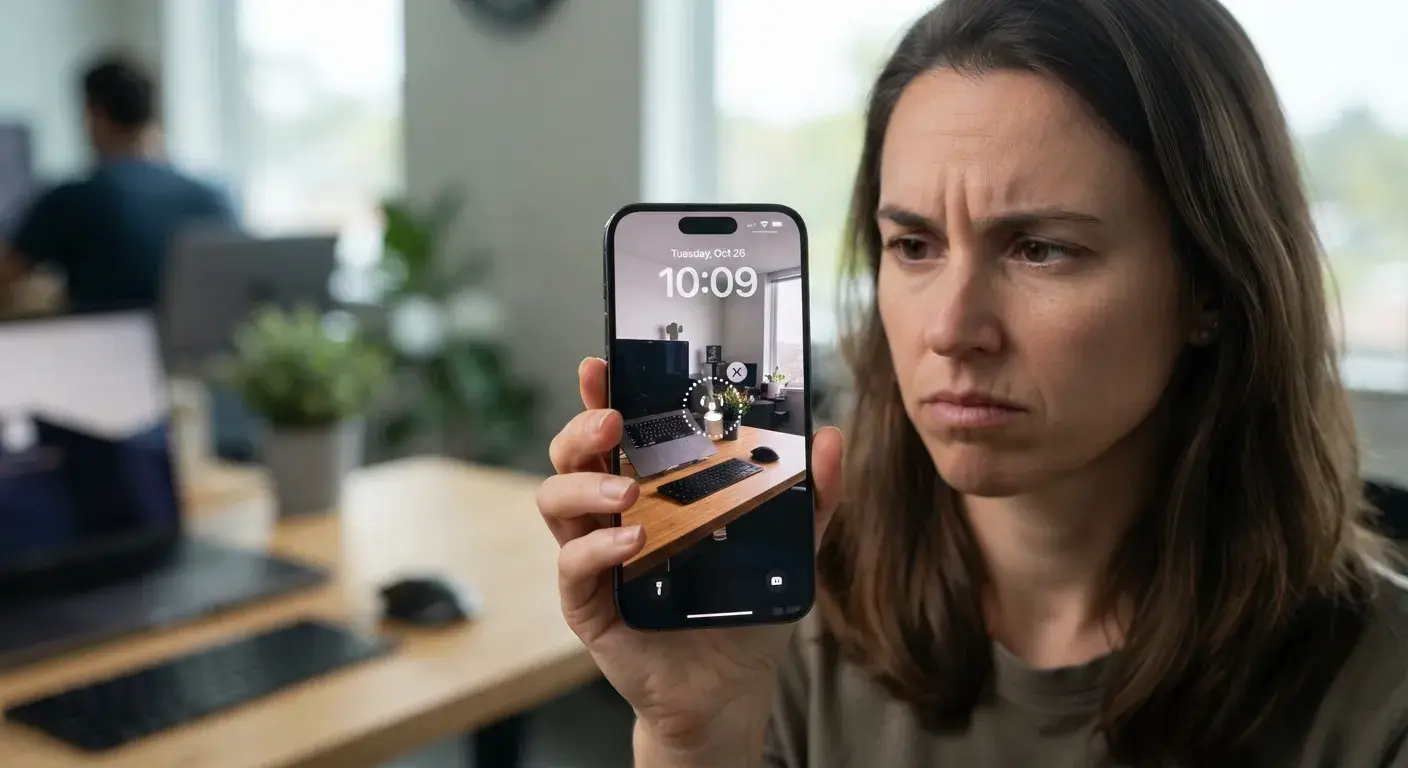
Face ID makes unlocking your iPhone, authorizing payments, and accessing applications quick and convenient. However, when Face ID suddenly stops working, it can become frustrating. Your iPhone may display a message stating that Face ID is unavailable or fail to recognize your face. This problem can result from software glitches, dirty sensors, physical damage, or TrueDepth camera issues. Understanding the cause can help you find the right solution. If troubleshooting does not resolve the issue, Mobile Phone Repair Albany can help you explore professional repair options. Finding the best cell phone repair in Albany can also help when your iPhone requires hardware inspection. You can visit Mobile Phone Repair Albany to discuss possible solutions.
Table of Contents
Common Reasons Why iPhone Face ID Stops Working
How to Fix Face ID Problems
When Should You Seek Professional Repair?
Tips to Keep Face ID Working Properly
Frequently Asked Questions
1. Common Reasons Why iPhone Face ID Stops Working
Several factors can prevent Face ID from recognizing your face correctly.
Dirty or Blocked TrueDepth Camera
Dust, fingerprints, screen protectors, or phone cases covering the front camera area can interfere with Face ID sensors.
Software Glitches
Temporary iOS bugs or outdated software may cause Face ID to stop responding properly.
Incorrect Face ID Settings
Face ID may not work if the feature is disabled for unlocking your phone or specific applications.
Physical or Water Damage
Dropping your iPhone or exposing it to moisture can damage the TrueDepth camera system and affect facial recognition.
TrueDepth Camera Problems
If the infrared camera, dot projector, or other TrueDepth components malfunction, Face ID may become unavailable.
2. How to Fix Face ID Problems
Try these troubleshooting steps before considering professional repair.
Clean the Front Camera Area
Use a soft, clean microfiber cloth to remove fingerprints and dust around the front camera and sensor area.
Check Face ID Settings
Open Settings, select Face ID and Passcode, and check whether Face ID is enabled for the features you want to use.
Restart Your iPhone
Restarting your device can clear temporary software glitches and restore normal functionality.
Update iOS
Check Settings for available software updates. Installing the latest compatible iOS version may resolve known Face ID bugs.
Reset Face ID
If the feature continues malfunctioning, go to Settings, select Face ID and Passcode, and choose Reset Face ID. Set it up again by following the on-screen instructions.
Remove Screen Obstructions
Check whether your screen protector or phone case is blocking the TrueDepth camera area. Remove any obstruction and test Face ID again.
3. When Should You Seek Professional Repair?
If Face ID remains unavailable after troubleshooting, your iPhone may have a hardware problem.
Consider professional inspection if:
Face ID stopped working after a drop.
Your phone experienced water damage.
You see a persistent Face ID unavailable message.
Face ID cannot complete the setup process.
The front camera or related features are also malfunctioning.
The TrueDepth camera system contains specialized components, so avoid attempting a DIY repair. A qualified technician can inspect the device and determine the appropriate repair options.
If you need Mobile Phone Repair Albany, compare diagnostic services, repair experience, and warranty policies when choosing the best cell phone repair in Albany.
4. Tips to Keep Face ID Working Properly
Follow these simple practices to maintain Face ID performance:
Keep the front camera and sensor area clean.
Use a compatible screen protector.
Avoid dropping your iPhone.
Protect your device from moisture.
Install official iOS updates.
Avoid applying pressure to the front camera area.
5. Frequently Asked Questions
Why does my iPhone say Face ID is unavailable?
This message may indicate a software issue, blocked sensor, or problem with the TrueDepth camera system.
Can a screen protector affect Face ID?
Yes. An incorrectly fitted screen protector can obstruct the front camera or sensor area.
Will restarting my iPhone fix Face ID?
Restarting may resolve temporary software glitches, but it will not repair damaged hardware.
Can Face ID be repaired after water damage?
Possibly. It depends on which components are affected and the extent of the damage. Professional inspection is recommended.
Does resetting Face ID delete my photos?
No. Resetting Face ID removes your saved facial recognition data but does not delete your photos, contacts, or other personal files.
Conclusion
iPhone Face ID problems can result from dirty sensors, software glitches, incorrect settings, or damaged TrueDepth camera components. Trying basic troubleshooting steps may restore normal functionality, but persistent problems require professional attention. For reliable Mobile Phone Repair Albany, compare the best cell phone repair in Albany options and choose an appropriate repair solution. You can also visit Mobile Phone Repair Albany to explore assistance for your iPhone.
Call to Action
Is your iPhone Face ID refusing to recognize your face? Don't let authentication problems affect your daily smartphone experience. Visit Mobile Phone Repair Albany to discuss your device's symptoms and explore suitable repair options. Get your iPhone checked and take the next step toward restoring its functionality!


Join the conversation
Discussion0
Join the conversation. Sign in to leave a response or reply to comments.