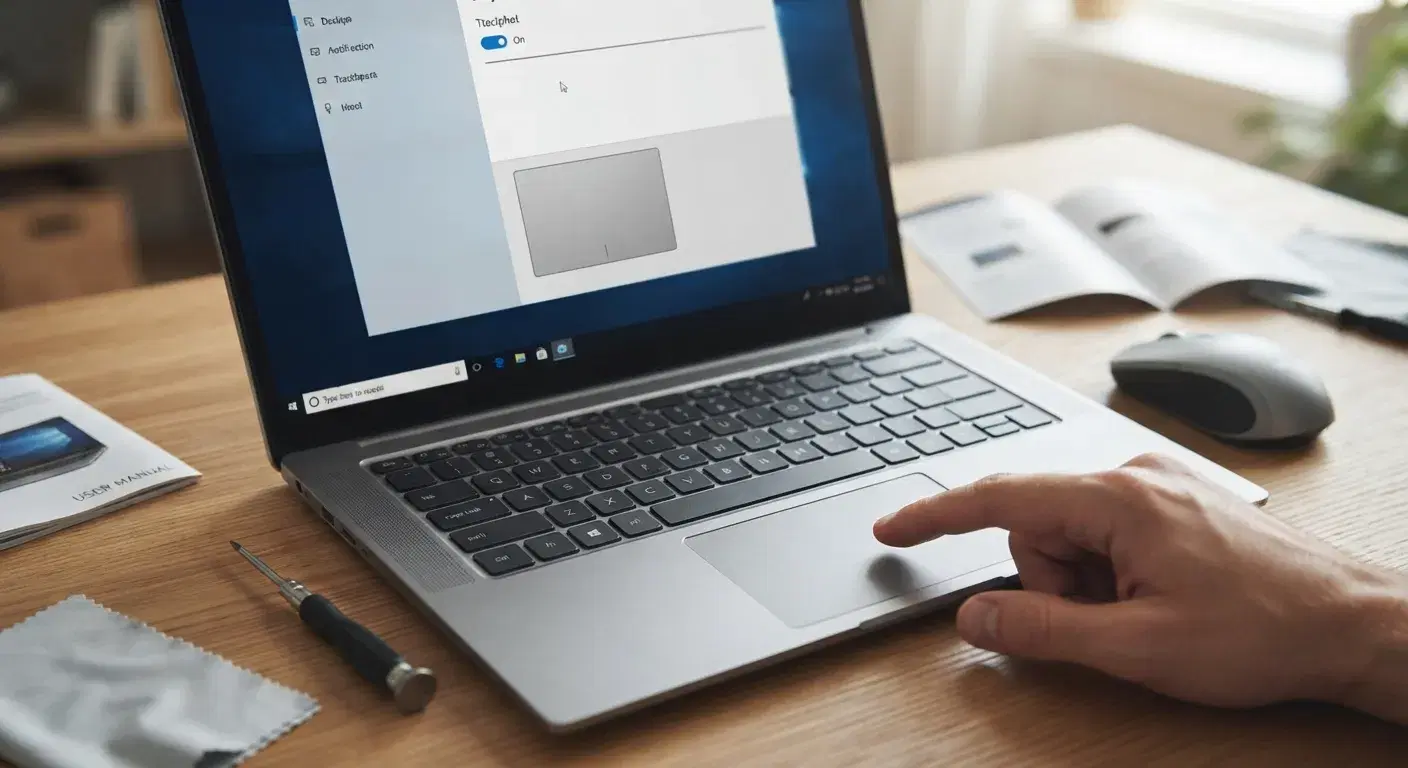
A laptop touchpad that suddenly stops responding can make everyday tasks frustrating, especially when you need to work without an external mouse. The problem may be caused by disabled touchpad settings, outdated drivers, software conflicts, or hardware damage. If basic troubleshooting does not solve the issue, professional computer repair Albany services can help identify the cause and restore normal functionality. Knowing what to check can also help you decide when to seek the best computer repair in Albany for reliable assistance.
Table of Contents
Common Reasons a Laptop Touchpad Stops Working
How to Troubleshoot an Unresponsive Touchpad
When Should You Seek Professional Repair?
Frequently Asked Questions
1. Common Reasons a Laptop Touchpad Stops Working
Several issues can prevent a laptop touchpad from responding correctly.
Disabled Touchpad Settings
Many laptops include a keyboard shortcut or function key that turns the touchpad on and off. It is possible to disable it accidentally while typing or cleaning the keyboard.
Outdated or Corrupted Drivers
Touchpad drivers allow the operating system to communicate with the touchpad hardware. Outdated, missing, or corrupted drivers can cause the cursor to freeze or stop moving.
Operating System Updates
Sometimes, a Windows update can change device settings or create compatibility problems with existing touchpad drivers.
Dirt, Moisture, or Physical Damage
Dust, grease, and moisture can interfere with touchpad sensitivity. Physical damage from drops, pressure, or liquid spills may also affect its operation.
Software Conflicts
Third-party mouse utilities, recently installed applications, or incorrect system configurations may interfere with touchpad functionality.
2. How to Troubleshoot an Unresponsive Touchpad
Try these practical steps before assuming the touchpad needs replacement.
Check Whether the Touchpad Is Enabled
Open your laptop's touchpad settings and make sure the feature is switched on. In Windows, navigate to Settings > Bluetooth & devices > Touchpad. You can use an external mouse or keyboard shortcuts if necessary.
Restart Your Laptop
A simple restart can resolve temporary software glitches. Save your work, restart the computer, and check whether the touchpad responds afterward.
Update or Reinstall Touchpad Drivers
Open Device Manager and look under Human Interface Devices or Mice and other pointing devices. Check for driver updates. If the driver appears corrupted, reinstalling it may help. Use the laptop manufacturer's official website for compatible drivers.
Disconnect External Devices
Disconnect external mice and other unnecessary USB devices. Some laptops automatically disable the touchpad when an external mouse is connected, depending on their settings.
Clean the Touchpad Carefully
Turn off the laptop and gently clean the touchpad with a soft, slightly damp microfiber cloth. Avoid spraying liquid directly onto the surface.
3. When Should You Seek Professional Repair?
If the touchpad remains unresponsive after trying these steps, the issue may involve an internal connection, damaged touchpad components, or a motherboard-related problem.
Professional technicians can inspect the hardware, test the touchpad connection, identify software conflicts, and recommend an appropriate repair. If you need assistance with a persistent laptop problem, consider professional computer repair Albany services.
Choosing the best computer repair in Albany can help you avoid unnecessary replacements and get a clearer understanding of the issue. You can also arrange support when troubleshooting at home is not enough.
4. Frequently Asked Questions
Why did my laptop touchpad suddenly stop working?
It may have been disabled accidentally, or the problem could involve outdated drivers, software conflicts, or hardware damage.
Can I use my laptop without a working touchpad?
Yes. You can connect an external USB or wireless mouse while troubleshooting the touchpad.
Will updating Windows fix my touchpad?
It may help if the problem is related to software compatibility, but it will not repair physical damage.
How do I know if my touchpad is physically damaged?
If the touchpad has visible cracks, feels unusual, or remains unresponsive after software troubleshooting, it may require professional inspection.
Should I replace my laptop if the touchpad stops working?
Not necessarily. A touchpad repair or replacement may resolve the problem without requiring a new laptop.
Get Professional Laptop Repair Assistance
A nonresponsive touchpad does not always mean your laptop has a serious hardware problem. Checking settings, updating drivers, and restarting the device can often restore normal operation. However, persistent issues deserve proper diagnosis to prevent further inconvenience.
If your laptop touchpad is still not working, visit Computer Repair Albany for professional troubleshooting and repair assistance. Explore the available services at https://computerrepairalbany.net/ and get help with your laptop problems.
Join the conversation
Discussion0
Join the conversation. Sign in to leave a response or reply to comments.